Sharp MX-C300PL Spécifications Page 32 : SELECTING THE PAPER
 1
 2
 3
 4
 5
 6
 7
 8
 9
 10
 11
 12
 13
 14
 15
 16
 17
 18
 19
 20
 21
 22
 23
 24
 25
 26
 27
 28
 29
 30
 31
 32
 33
 34
 35
 36
 37
 38
 39
 40
 41
 42
 43
 44
 45
 46
 47
 48
 49
 50
 51
 52
 53
 54
 55
 56
 57
 58
 59
 60
 61
 62
 63
 64
 65
 66
 67
 68
 69
 70
 71
 72
 73
 74
 75
 76
 77
 78
 79
 80
 81
 82
 83
 84
 85
 86
 87
 88
 89
 90
 91
 92
 93
 94
 95
 96
 97
 98
 99
 100
 101
 102
 103
 104
 105
 106
 107
 108
32
PRINTER
3
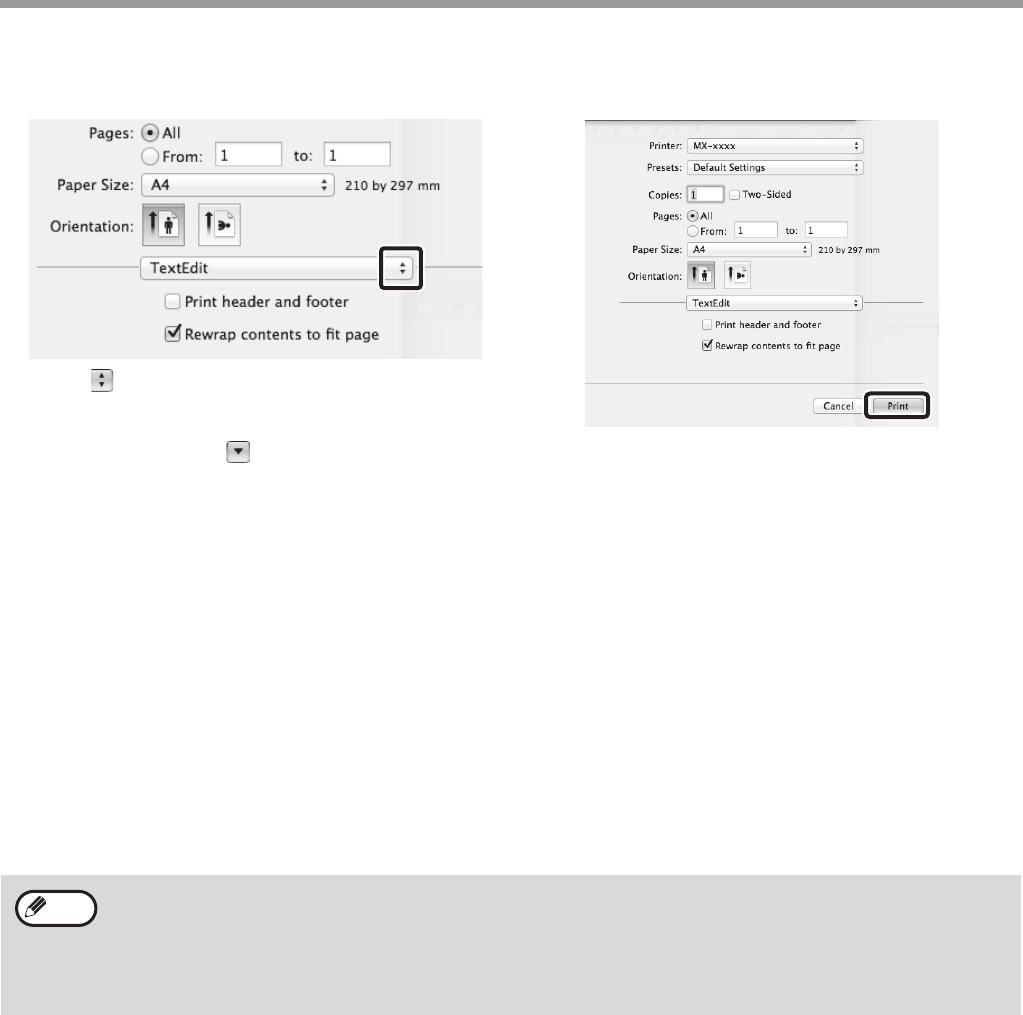
Select print settings.
Click
in the menu to select a setting. The
corresponding setting screen will appear.
If the settings do not appear in Mac OS X v10.5,
10.6 and 10.7, click "
" next to the printer name.
4
Click the [Print] button.
Printing begins.
SELECTING THE PAPER
This section explains the [Paper Feed] settings in the print settings window.
• When [Auto Select] is selected
A tray with plain paper or recycled paper (the factory default setting is plain paper only) of the size specified in
"Paper Size" in the page settings window is automatically selected.
• When a paper tray is selected
The specified tray is used for printing regardless of the "Paper Size" setting in the page settings window.
For the bypass tray, a paper type can also be specified. Make sure that the paper type setting for the bypass tray
is correct and that the set type of paper is actually loaded in the bypass tray, and then select the appropriate
bypass tray (paper type).
• When a paper type is selected
A tray with the specified type of paper and the size specified in "Paper Size" in the page settings window is used
for printing.
• Special media such as envelopes can also be placed in the bypass tray. For the procedure for loading paper
and other media in the bypass tray, see
"Loading the bypass tray" (P.17)
.
• When "Enable Detected Paper Size in Bypass Tray" (disabled by factory default) or "Enable Selected Paper
Type in Bypass Tray" (enabled by factory default) is enabled in the system settings (administrator), printing will
not take place if the paper size or paper type specified in the printer driver is different from the paper size or
paper type specified in the settings of the bypass tray.
Note
Fichier PDF · ·
Questions sur Sharp MX-C300PL
Pas encore de questions sur ce manuel. Posez la première.
Produits connexes et manuels pour Imprimer et scanner Sharp MX-C300PL
- Imprimer et scanner Sharp MX-M200D Manuel d'utilisateur
 (100 pages)
- Imprimer et scanner Sharp AR-4551 Spécifications
 (280 pages)
- Imprimer et scanner Sharp AR-M351N Spécifications
(188 pages)
- Imprimer et scanner Sharp AR-M355 Manuel d'utilisateur
(12 pages)
- Imprimer et scanner Sharp MX-M904 Spécifications
(122 pages)
- Imprimer et scanner Sharp JX-9600 Manuel d'utilisateur
 (14 pages)
- Imprimer et scanner Sharp CE-140P Manuel d'utilisateur
 (60 pages)
- Imprimer et scanner Sharp EL-2607R Spécifications

 (2 pages)
- Imprimer et scanner Sharp DP-750 Manuel de service
(110 pages)
- Imprimer et scanner Sharp AR-M350N/M450N Manuel d'utilisateur
(12 pages)
- Imprimer et scanner Sharp ER-01PU Manuel d'instructions
(241 pages)
- Imprimer et scanner Sharp UX-4000M - UX 4000 B/W Laser Printer Guide de l'utilisateur
(194 pages)
- Imprimer et scanner Sharp AR-NB3 Manuel d'utilisateur
(4 pages)
- Imprimer et scanner Sharp MX-5500N Spécifications
(50 pages)
- Imprimer et scanner Sharp MX-M200D Manuel de service
(121 pages)
- Imprimer et scanner Sharp AR-4551 Manuel d'utilisateur
(44 pages)
- Imprimer et scanner Sharp MX-5500N Manuel d'utilisateur
(6 pages)
- Imprimer et scanner Sharp AR-RB1 Spécifications
(140 pages)
- Imprimer et scanner Sharp AR-M351N Manuel d'utilisateur
(20 pages)
- Imprimer et scanner Sharp FO-2150CM Manuel de service
(132 pages)