Sharp AR-4551 Spécifications Page 201 : AND PRINTER UTILITIES
 1
 2
 3
 4
 5
 6
 7
 8
 9
 10
 11
 12
 13
 14
 15
 16
 17
 18
 19
 20
 21
 22
 23
 24
 25
 26
 27
 28
 29
 30
 31
 32
 33
 34
 35
 36
 37
 38
 39
 40
 41
 42
 43
 44
 45
 46
 47
 48
 49
 50
 51
 52
 53
 54
 55
 56
 57
 58
 59
 60
 61
 62
 63
 64
 65
 66
 67
 68
 69
 70
 71
 72
 73
 74
 75
 76
 77
 78
 79
 80
 81
 82
 83
 84
 85
 86
 87
 88
 89
 90
 91
 92
 93
 94
 95
 96
 97
 98
 99
 100
 101
 102
 103
 104
 105
 106
 107
 108
 109
 110
 111
 112
 113
 114
 115
 116
 117
 118
 119
 120
 121
 122
 123
 124
 125
 126
 127
 128
 129
 130
 131
 132
 133
 134
 135
 136
 137
 138
 139
 140
 141
 142
 143
 144
 145
 146
 147
 148
 149
 150
 151
 152
 153
 154
 155
 156
 157
 158
 159
 160
 161
 162
 163
 164
 165
 166
 167
 168
 169
 170
 171
 172
 173
 174
 175
 176
 177
 178
 179
 180
 181
 182
 183
 184
 185
 186
 187
 188
 189
 190
 191
 192
 193
 194
 195
 196
 197
 198
 199
 200
 201
 202
 203
 204
 205
 206
 207
 208
 209
 210
 211
 212
 213
 214
 215
 216
 217
 218
 219
 220
 221
 222
 223
 224
 225
 226
 227
 228
 229
 230
 231
 232
 233
 234
 235
 236
 237
 238
 239
 240
 241
 242
 243
 244
 245
 246
 247
 248
 249
 250
 251
 252
 253
 254
 255
 256
 257
 258
 259
 260
 261
 262
 263
 264
 265
 266
 267
 268
 269
 270
 271
 272
 273
 274
 275
 276
 277
 278
 279
 280
 281
 282
 283
 284
 285
 286
2-3
2
INSTALLING PRINTER DRIVERS AND PRINTER UTILITIES
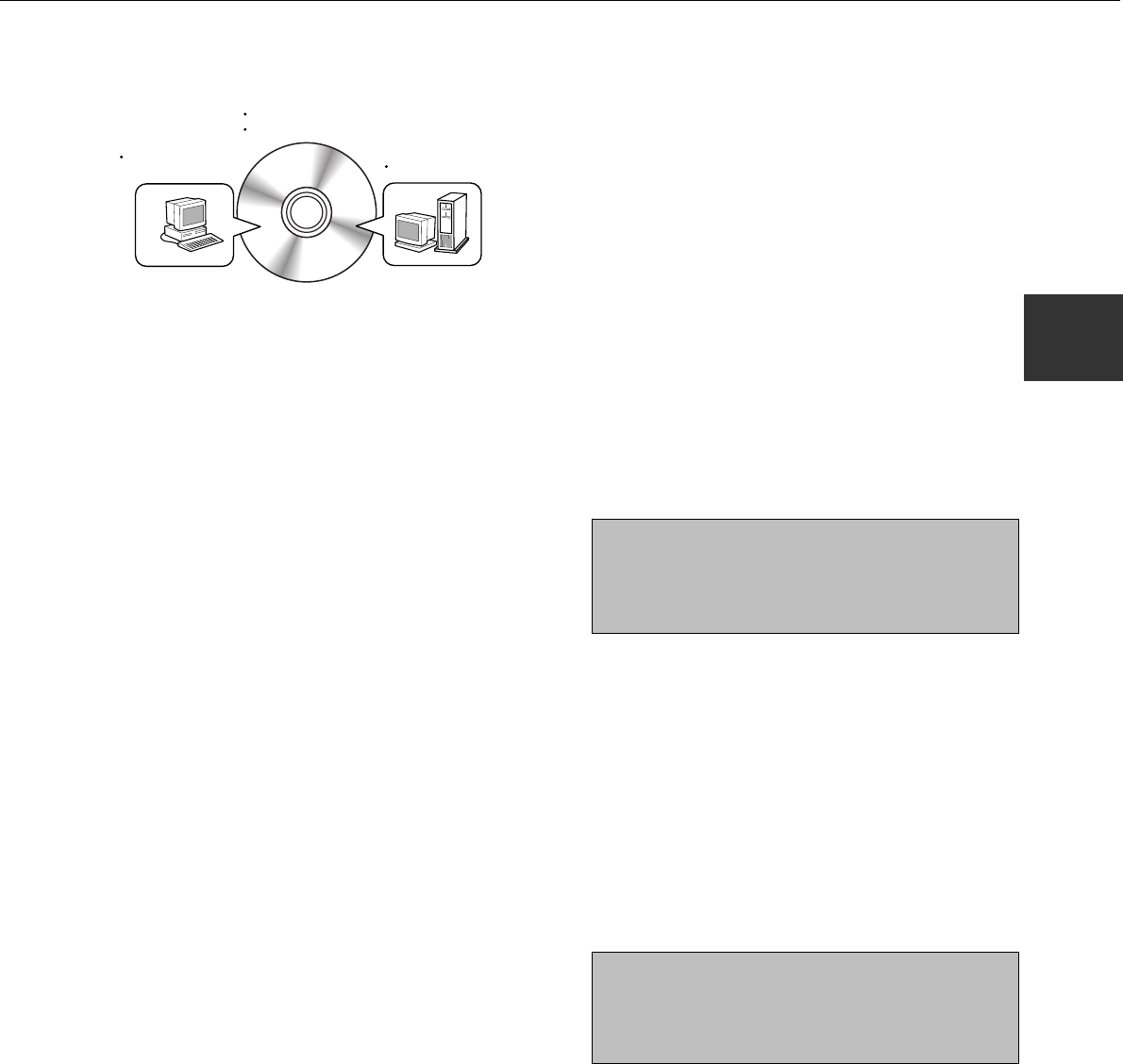
The following software can be installed from the installer
supplied in the CD-ROM :
●
PCL printer drivers (PCL5e and PCL6)
●
PCL display font
●
Printer Administration Utility
●
Printer Status Monitor
UNINSTALLING PRINTER DRIVERS
AND PRINTER UTILITIES
When uninstalling a printer driver that has been installed from the Add Printer wizard, right-click the printer to be deleted
from “Printers” of “Control Panel” and select [Delete]. When uninstalling a printer driver that has been installed using the
installer, the Printer Administration Utility or the Printer Status Monitor, use “Add/Remove Programs” of “Control Panel”.
Use the Windows standard operation for each case.
1
Start Windows.
2
Insert the supplied CD-ROM into a CD-
ROM drive of your computer.
If your computer is configured for auto start on the
CD-ROM, the language select or user select screen
described in step 5 will appear. (Steps 3 and 4 are
not needed.)
3
On the [Start] menu, click “Run.”
4
Enter the CD-ROM drive and setup
command. Then click the [OK] button.
Example:If the CD-ROM drive is designated as drive
R, enter “R:\SETUP.EXE”.
5
Read the text of Readme First and then click
the [Next] button.
6
Select the tools to be installed and click the
[Next] button.
●
If you select general user tools, you can install
the following software.
PCL5e printer driver, PCL6 printer driver, PCL
display font, Printer Status Monitor
●
If you select administrator tools, you can install
the following software.
Printer Administrator Utility
7
The printer drivers and printer utilities that
can be installed from the CD-ROM will be
listed. Select the check boxes of the desired
drivers and utilities and click the [Next]
button.
If you click the icon next to a check box and click
the [display README] button, the information of
the specified software will be displayed. When
installing the Printer Administration Utility and the
Printer Status Monitor, read the README text and
check to see if the computer system requirements
are satisfied.
NOTE
The Printer Administration Utility and the Printer
Status Monitor can be used only if this product is
used as a network printer.
8
Click the [Start] button.
The installation screen of the file selected with a
check box will appear. Follow the instructions on
your screen to install the selected printer drivers
and utilities.
9
When installation is complete, the message
“Setup has finished installing your selected
package(s).” will appear. Click the [Close]
button.
NOTE
Restart of your computer may be needed
depending on the system. Click [Yes] to restart
the computer.
Windows software
PCL printer drivers
PCL display font
Network administrator
Network Administration Utility
Windows client
Printer Status
Monitor
Execute installation from the CD-ROM using the following procedure.
Fichier PDF · ·
Questions sur Sharp AR-4551
Pas encore de questions sur ce manuel. Posez la première.
Produits connexes et manuels pour Imprimer et scanner Sharp AR-4551
- Imprimer et scanner Sharp AR-M300 Manuel d'utilisateur
 (12 pages)
- Imprimer et scanner Sharp FO-2080 Spécifications
(104 pages)
- Imprimer et scanner Sharp AR-MU2 Manuel d'utilisateur
(2 pages)
- Imprimer et scanner Sharp AR-C200P - Color Laser Printer Manuel de service
(196 pages)
- Imprimer et scanner Sharp M450 U Manuel de service
(276 pages)
- Imprimer et scanner Sharp AL-1000 Series Spécifications
(47 pages)
- Imprimer et scanner Sharp AR-350 Manuel d'utilisateur
(10 pages)
- Imprimer et scanner Sharp AR-C200P - Color Laser Printer Spécifications
(390 pages)
- Imprimer et scanner Sharp M450U Spécifications
(200 pages)
- Imprimer et scanner Sharp AR-M300 Manuel d'utilisateur
(12 pages)
- Imprimer et scanner Sharp AR-TE3 Manuel d'utilisateur
(25 pages)
- Imprimer et scanner Sharp AR-C265P Manuel de service
(254 pages)
- Imprimer et scanner Sharp FO-2080 Manuel d'utilisateur
(4 pages)
- Imprimer et scanner Sharp AL-1000 Series Manuel d'utilisateur
(1 pages)
- Imprimer et scanner Sharp AR-M455N Manuel de service
(30 pages)
- Imprimer et scanner Sharp AR-122E N Spécifications
 (80 pages)
- Imprimer et scanner Sharp AL-1000 Series Manuel de service
(93 pages)
- Imprimer et scanner Sharp SF-2014 Manuel de service
(128 pages)
- Imprimer et scanner Sharp AR-153E N Spécifications
(121 pages)
- Imprimer et scanner Sharp JX-9500H Instructions d'exploitation
(89 pages)